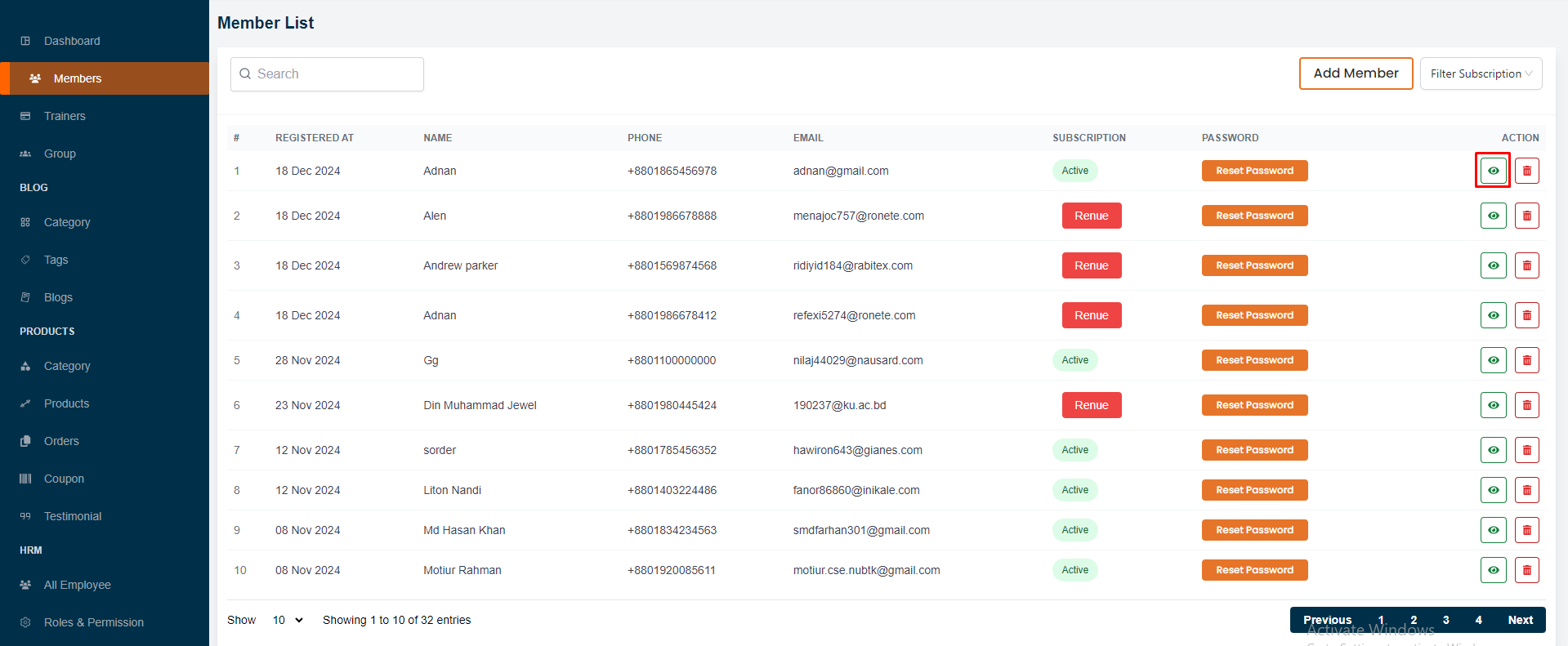
In this section, the admin will be able to see all the existing members and their key information. Admin can search for a specific user by using the "search bar" and also can filter members based on their role using the " filter option ".
# Here is how to add a new Members !
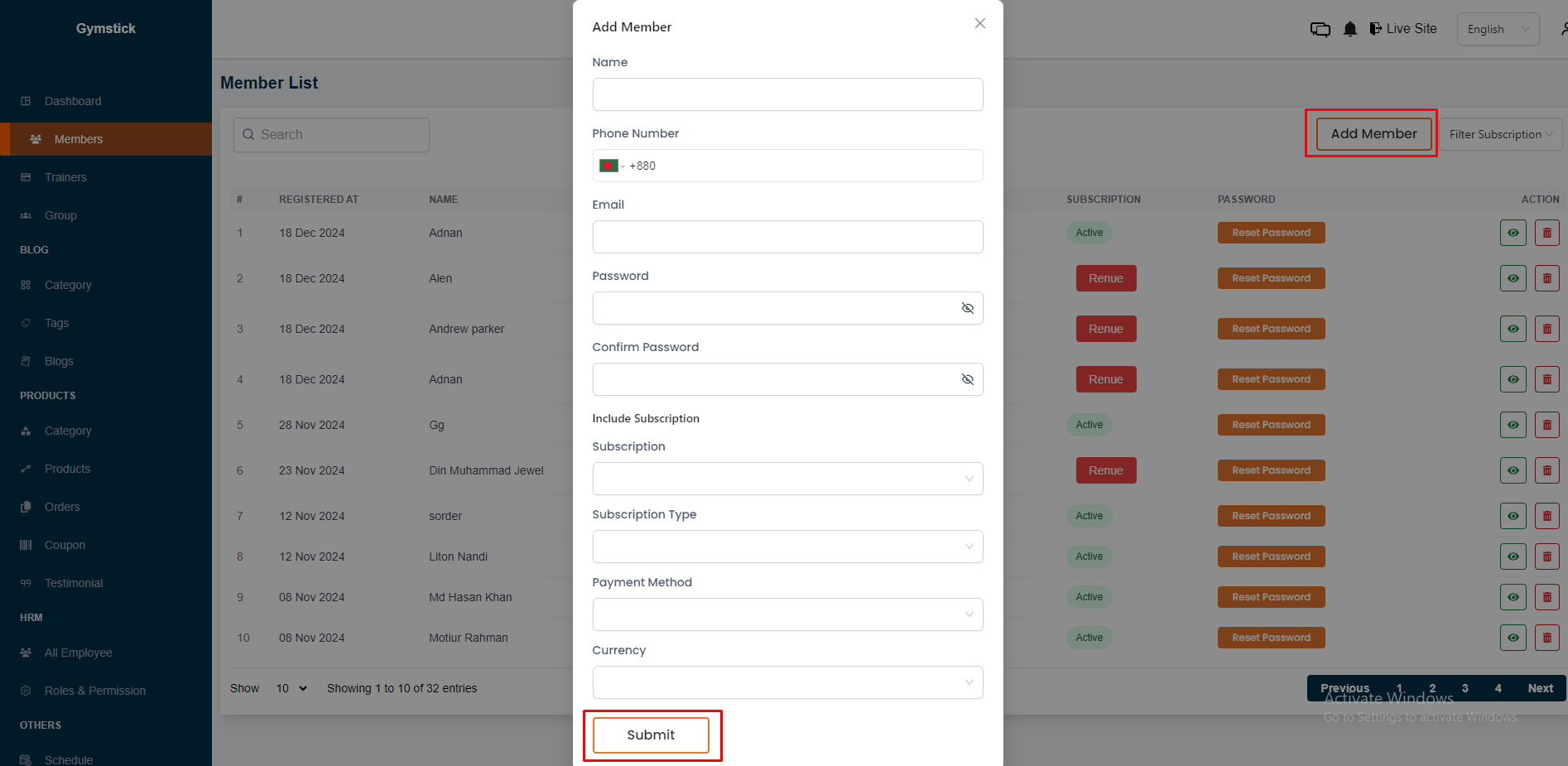
To add a new user, click on the "Add Member" button.
A modal will appear where you can see add member form.
Fill up that form and click on the "Submit" button to add the member.
# Here is how to see member Details !
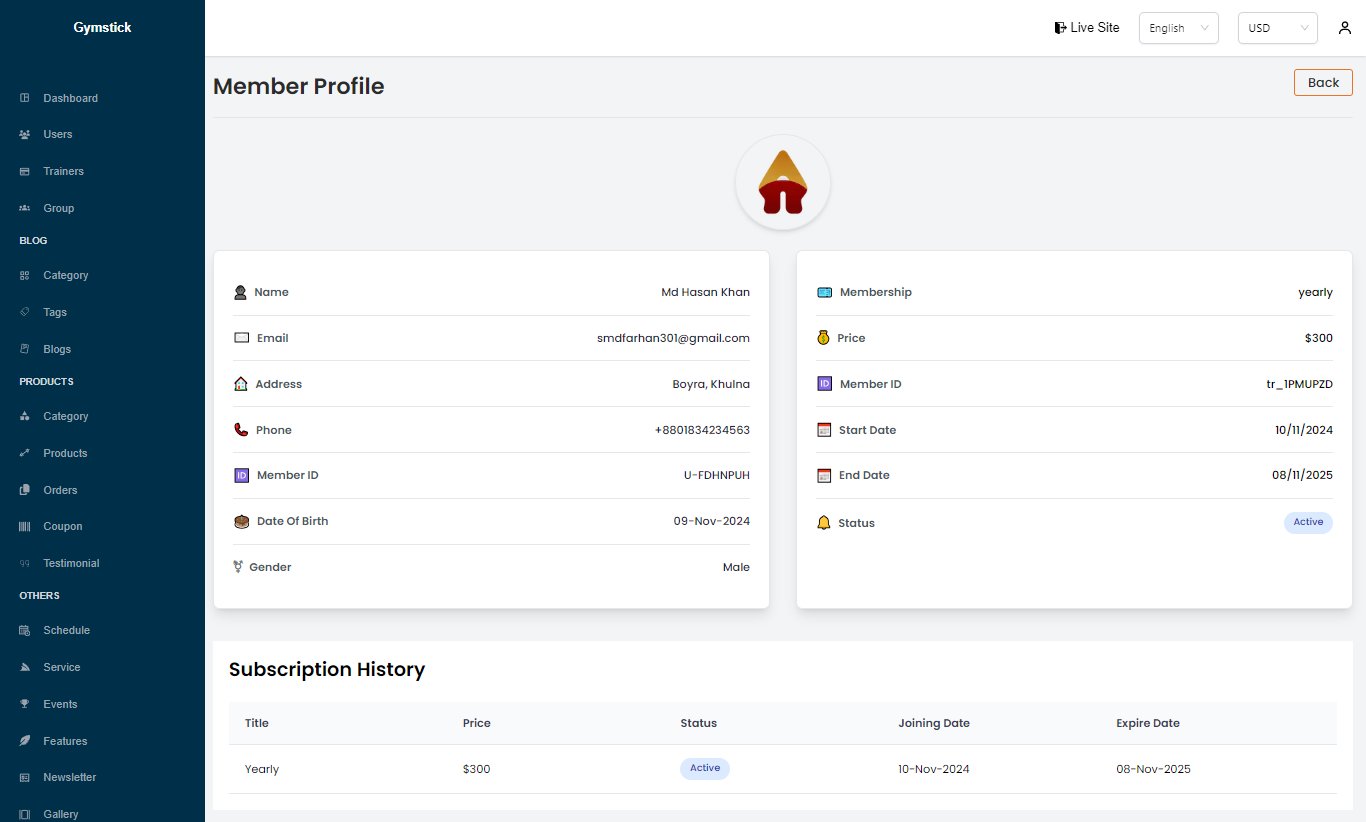
To see the details of a members, click on the "View" button. A page will appear where you can see the details of the member.
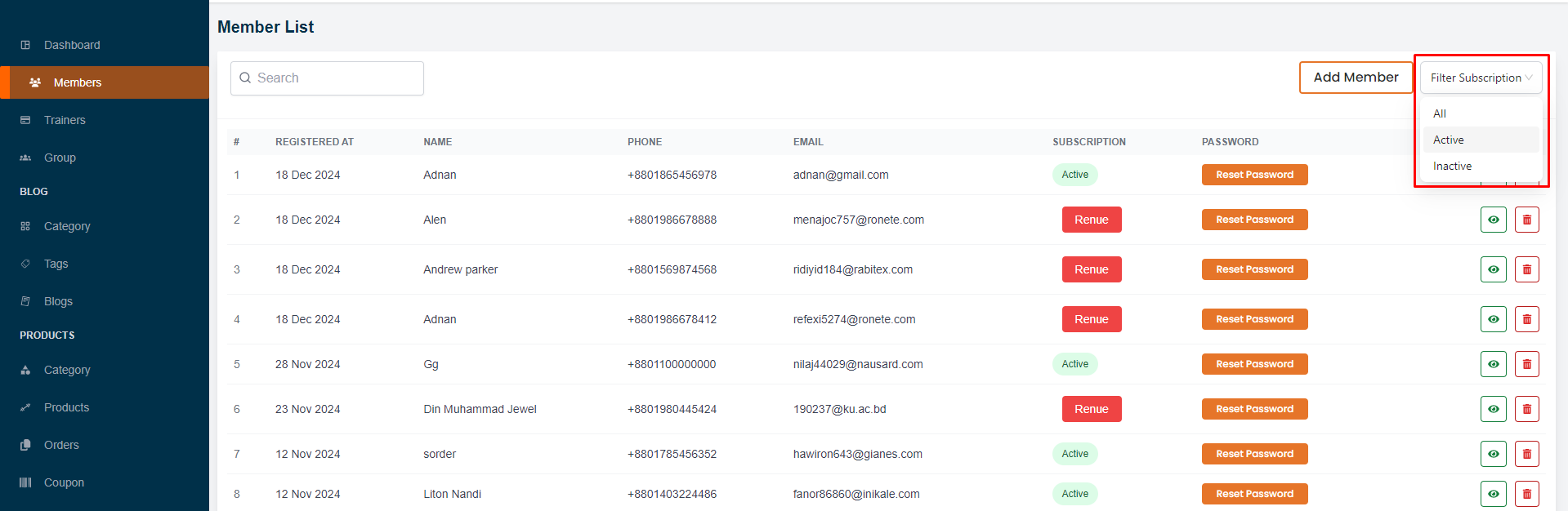
And you can also filter members based on their subscription using the "filter subscription".
# Here is how you can reset member password !
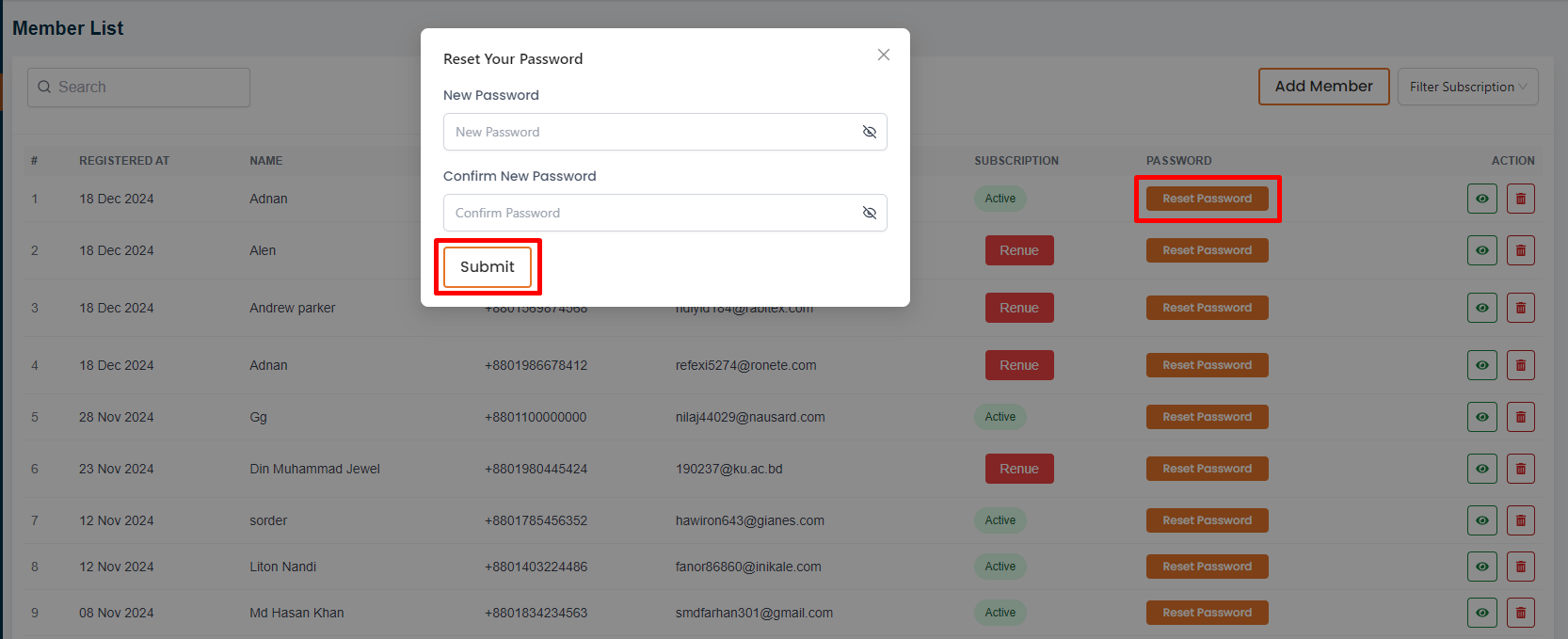
In this section, the admin will be able to reset user password by clicking the Reset Password action button.
A modal will appear where you can see the reset password form.
Fill up the form and click on the "Submit" button to reset the password.
# Here is how to renue member subscription !
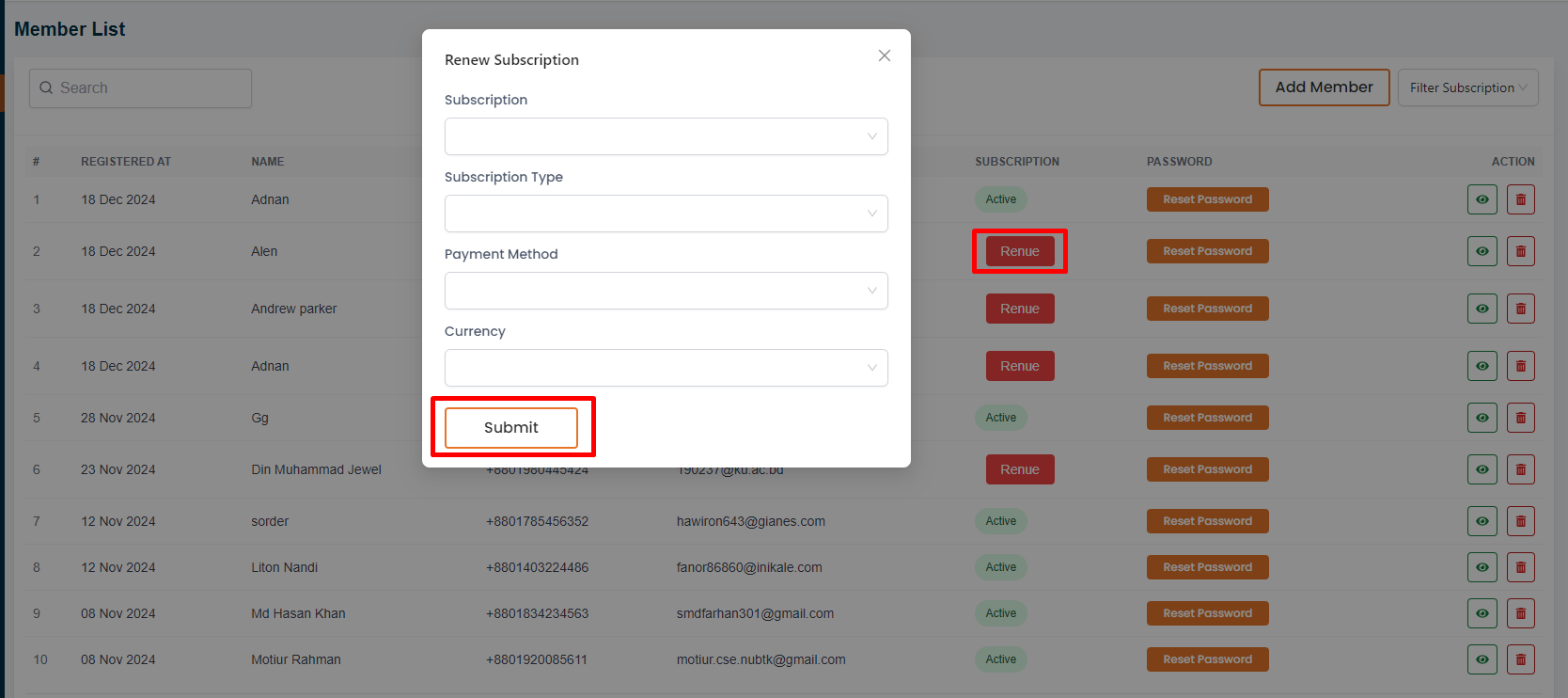
In this section, the admin will be able to renew a user subscription by clicking the Renue action button.
Here is how you can delete a member !
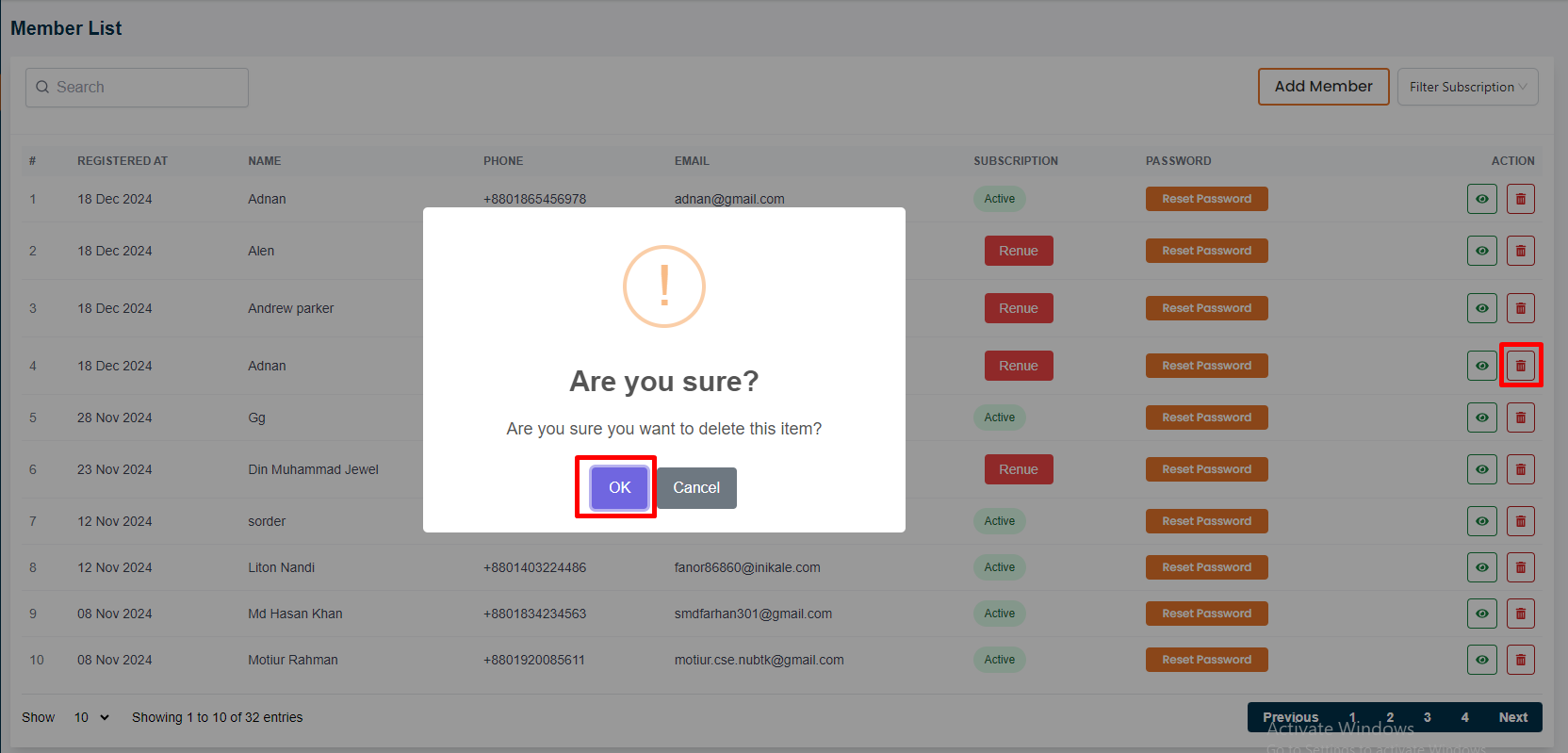
In this section, the admin will be able to delete a user by clicking the Delete action button.